
Top-Rated M.2 SSD PS5 Upgrades for Gamers in 2025
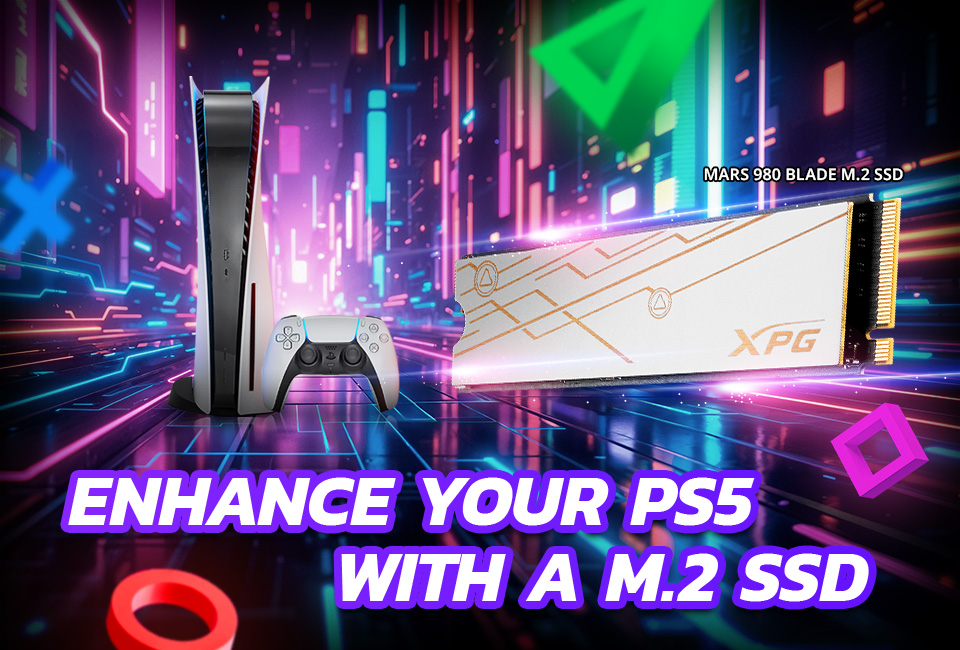
An m.2 ssd ps5 upgrade isn’t just about adding more storage, it’s about unlocking next-level speed, shorter load times, and a smoother gaming experience for your PlayStation 5 in 2025. With game sizes ballooning and the built-in drive filling up fast, the right M.2 NVMe SSD lets you install more titles, play without lag, and future-proof your console. In this article, we’ll highlight the top-rated M.2 SSD PS5 upgrades for gamers in 2025, guiding you through the best options to find the ideal one for your system and setup.
Why Upgrade Your PS5 Storage in 2025
Upgrading your PS5 storage in 2025 is more important than ever. Games are becoming larger, often exceeding 100 GB each, while newer PS5 models like the Slim have less internal space. Installing a high-speed SSD not only lets you keep more games on your console but also reduces load times and improves overall performance. You can also use external drives for PS4 games, media, or backups, keeping your internal storage free for PS5 titles. A larger, faster SSD future-proofs your console, ensuring it can handle bigger, more demanding games and stay responsive for years to come.
Top-Rated M.2 SSD Options for PS5 in 2025
Here are some of the best M.2 SSDs you can use to upgrade your PS5. They are fast, reliable, and fully compatible.
Top1: ADATA XPG MARS 980 BLADE PCIe Gen5 x4 M.2 2280 SSD
- Performance: One of the fastest SSDs available with read speeds up to 14,000 MB/s thanks to PCIe 5.0 technology. This speed far exceeds the PS5’s PCIe 4.0 interface, which means it’s more than capable of handling any PS5 game with room to spare.
- PS5 Compatibility: This PCIe 5.0 SSD works easily with the PS5. It stays cool, so you don’t need an extra heatsink.
- Ideal For: Gamers who want extreme performance, future-proofing, and the fastest possible load times. Perfect if you also plan to use it on future PCs that support PCIe 5.0.
Top2: WD Black SN850X PCIe 4.0 NVMe M.2 SSD
- Performance: Read speeds up to 7,300 MB/s, hitting the sweet spot for PS5 requirements.
- PS5 Compatibility: Comes with a built-in heatsink for efficient cooling, making it a plug-and-play option for the PS5. Widely tested and reliable.
- Ideal For: Gamers looking for a great balance of performance and price, delivering excellent load times without overspending.
Top3: Samsung 990 PRO 2 PCIe 4.0 NVMe SSD
- Performance: Fast read speeds up to 7,450 MB/s, slightly higher than the WD Black SN850X, ensuring ultra-quick loading and minimal stutter.
- PS5 Compatibility: Fully compatible with the PS5. Early firmware issues were quickly resolved, so it’s a stable and reliable choice.
- Ideal For: Users seeking top-tier performance and reliability. Great for gamers who want one of the most trusted SSD brands with consistent speed.
Top4: SanDisk SN850P SSD M.2
- Performance: Read speeds up to 7,000 MB/s, which is still excellent for PS5 gaming.
- PS5 Compatibility: Officially licensed by PlayStation and comes with a built-in heatsink, so it’s designed to work seamlessly with the PS5’s thermal and performance requirements.
- Ideal For: Gamers who prefer officially licensed products and want the convenience of integrated cooling.
Top5: Kingston 1TB NV3 M.2 2280 PCIe 4.0 NVMe SSD
- Performance: Read speeds up to 6,150 MB/s, slightly below the higher-end SSDs but still smooth enough for PS5 gaming.
- PS5 Compatibility: Works with PS5, but does not include a heatsink. If you want to maintain optimal temperatures, adding an aftermarket heatsink is recommended.
- Ideal For: Budget-conscious gamers seeking an affordable storage upgrade that doesn’t require extreme speeds.
All these SSDs work with the PS5 and are chosen to suit different needs. Pick the one that fits your gaming style and storage needs.
How to Choose the Best SSD for Your PS5
When upgrading your PS5 storage, consider these key factors to get the best performance and value:
- Speed
Choose an SSD with a minimum read speed of 5,500 MB/s to meet PS5 requirements. Faster PCIe 5.0 drives exist, but they’re usually unnecessary for gaming and are more expensive.
- Capacity
Modern games take up a lot of space, so you need enough storage. A 2TB SSD is enough for most gamers, offering a good balance of space and price. If you have a huge game library, 4TB–8TB drives give more room but cost more.
- Budget
Smaller SSDs work for basic storage, but 1TB or larger is recommended for gaming. Choose a size that meets your needs without spending too much.
- Special Features
Some SSDs include built-in heatsinks, which help keep the drive cool during long or intense gaming sessions. Other features to look for may include RGB lighting, advanced caching technology, or software for performance monitoring, depending on your needs.
PS5 M.2 SSD Installation Guide
Step 1: Power Off and Unplug: Turn off your PS5 completely and disconnect all cables, including power and HDMI. This helps prevent electrical damage while you work inside the console.
Step 2: Remove the Back Faceplate: Place your PS5 face down on a flat surface with the PlayStation logo facing down. Carefully slide off the back cover to access the inside. This lets you reach the SSD expansion slot safely without damaging the console.
Step 3: Access the SSD Expansion Slot: Find the SSD expansion slot, usually near the cooling fan. Use a Phillips screwdriver to remove the slot cover. This allows you to insert your new SSD.
Step 4: Prepare the SSD Slot: Remove the screw and spacer from the SSD slot, then position the spacer to match your SSD’s length to secure it properly.
Step 5: Insert the M.2 SSD: Line up the SSD with the connector and insert it at a slight angle. Press it down gently and secure it with the screw. This ensures the SSD is properly connected and works correctly.
Step 6: Reassemble the Console: Put the SSD slot cover back in place and reattach the PS5 faceplate. Make sure all parts are securely fitted before reconnecting the cables. This keeps the console safely closed and prevents damage while using it.
Step 7: Reconnect and Format: Turn your PS5 back on. The system will prompt you to format the new SSD. Follow the on-screen instructions to complete the setup. Formatting lets the PS5 recognize and use the SSD properly.
Handle the SSD carefully and avoid touching the metal connectors, because static electricity can damage it. Once installed correctly, your PS5 will recognize the new SSD, giving you more storage and faster game loading.
Tips for Optimal Performance
- Keep Your SSD Cool: Use a heatsink and position your PS5 in a well-ventilated area. Overheating can slow down your SSD and reduce its lifespan.
- Update PS5 Software: Ensure your PS5 has the latest system update. After installing the SSD, format it on the PS5 to ensure it works properly.
- Leave Some Free Space: Leave 10–20% of your SSD free to keep it fast and running efficiently.
- Manage Game Storage: Install PS5 games on your NVMe SSD for fast loading. Move PS4 games or media to an external drive if needed.
- Avoid Constant Large Transfers: Don’t move or copy huge files too often, as this can wear out the SSD. Spread out heavy transfers to keep it healthy.
- Check SSD Health Occasionally: Use a PC with monitoring software to track SSD health and data usage. Replace it before problems occur.
- Install Carefully: Insert the SSD properly into the M.2 slot, avoid touching the metal contacts, and don’t overtighten screws.
- Choose the Right Games & Settings: Some games benefit from the SSD’s speed. Use performance mode when available for smoother gameplay.